Running Compliance Scans
A compliance scan automatically evaluates how well your AI systems match requirements from enabled frameworks. Scans assess documentation completeness, control implementation (via infrastructure connectors), and performance (accuracy, fairness, security). Results include compliance scores, gap lists, and auto-generated remediation tasks — all powered by AI-driven analysis.
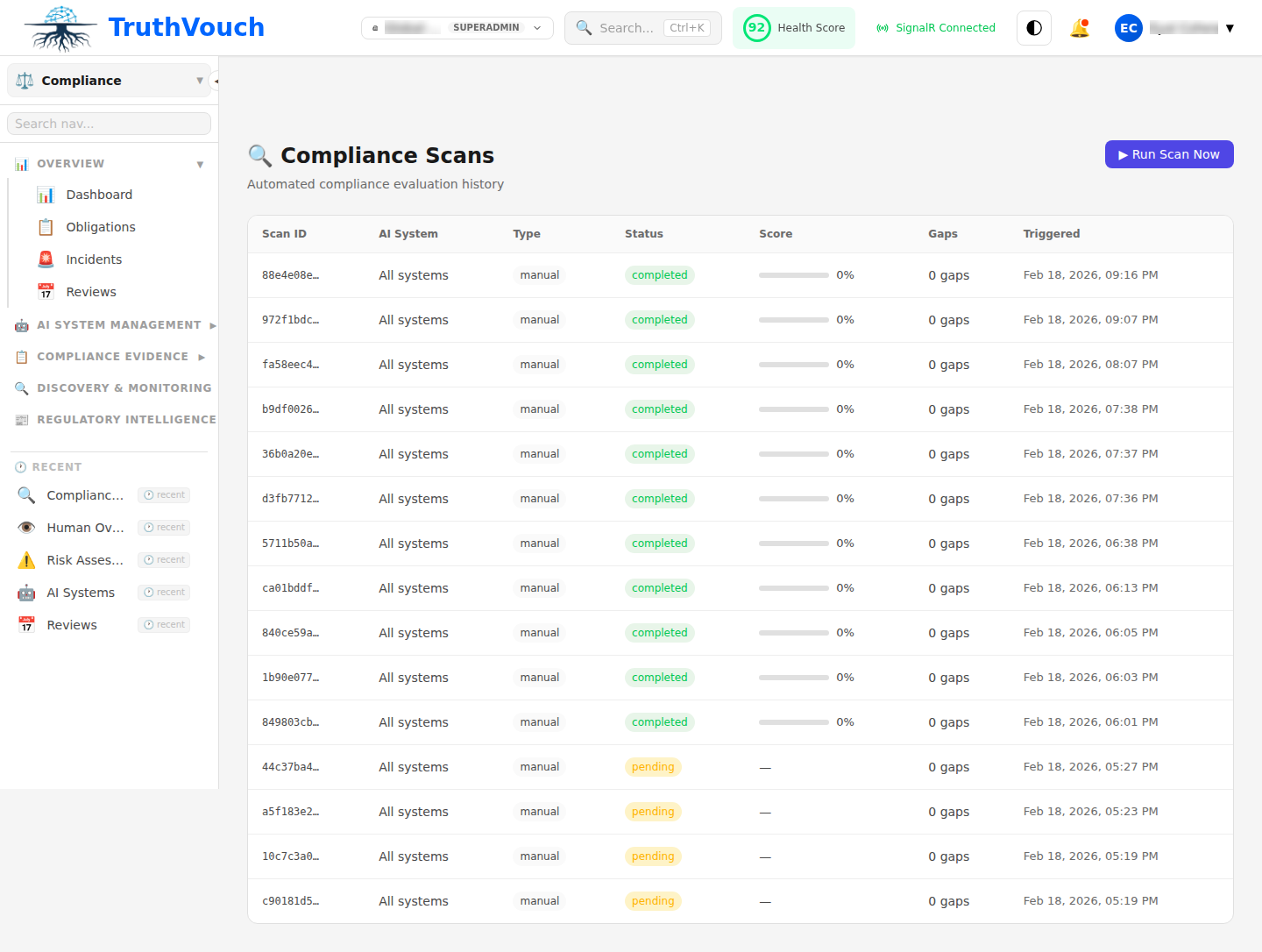
How to Run a Scan
Step 1: Select Scope
- Go to Compliance > Scans > New Scan
- Choose what to scan:
- Frameworks: Which regulations to audit against (EU AI Act, GDPR, ISO 42001, etc.)
- Systems: All systems or specific ones?
- Date: Scan current state or historical?
Step 2: Enable Evidence Collection
Connect infrastructure to pull live control evidence:
| Connector | What It Audits |
|---|---|
| AWS | CloudTrail logs, encryption, access controls, model endpoints |
| Azure | Azure Monitor, access logs, encryption, Azure ML models |
| GitHub | Code security, secret scanning, commit history |
| Okta | Access reviews, MFA enforcement, provisioning |
| Datadog | Monitoring, performance baselines, alerts |
| Slack | Training/communication (evidence of awareness) |
| ServiceNow | Tickets, change management, incident response |
Click checkboxes for connectors you’ve configured.
Step 3: Review & Launch
- Review scan configuration
- Estimate time: Scans typically take 5-15 minutes depending on:
- Number of systems (3-5 min per system)
- Data volume (log analysis, model inference testing)
- Number of frameworks
- Click Start Scan
Scan runs in background; you’ll receive email when complete.
Scan Contents
For each system and each framework, Compliance AI:
- Assesses documentation — Is model card present? Is risk assessment documented?
- Evaluates controls — Are required safeguards implemented?
- Uses infrastructure connectors to check: encryption, access logs, monitoring
- Reviews policies and procedures
- Checks training completion records
- Tests system — If available, runs fairness, robustness, and security tests
- Checks compliance history — Have previous gaps been fixed?
Understanding Scan Time
| Task | Duration |
|---|---|
| Documentation Assessment | 1-2 min per system |
| Control Implementation Check | 2-5 min per system (depends on connector latency) |
| System Performance Testing | 3-10 min (if model accessible) |
| Fairness/Bias Testing | 5-15 min (if test data available) |
| Total per System | ~5-20 min |
Tip: First scan takes longer (initialization); subsequent scans are faster (incremental).
Scheduled Scans
Run scans automatically on a schedule:
- Go to Scans > Scheduled Scans > New Schedule
- Configure:
- Frequency: Daily, weekly, monthly
- Time: When to run
- Frameworks: Which to audit
- Systems: All or specific
- Connectors: Which to use
- Click Enable
Scheduled scans run automatically and alert if new gaps appear.
Recommendation: Monthly scans for most orgs; daily if high-risk systems.
Next Steps
- View results: Understanding Scan Results
- Analyze gaps: Gap Analysis
- Create remediation tasks: Remediation