Onboarding Wizard
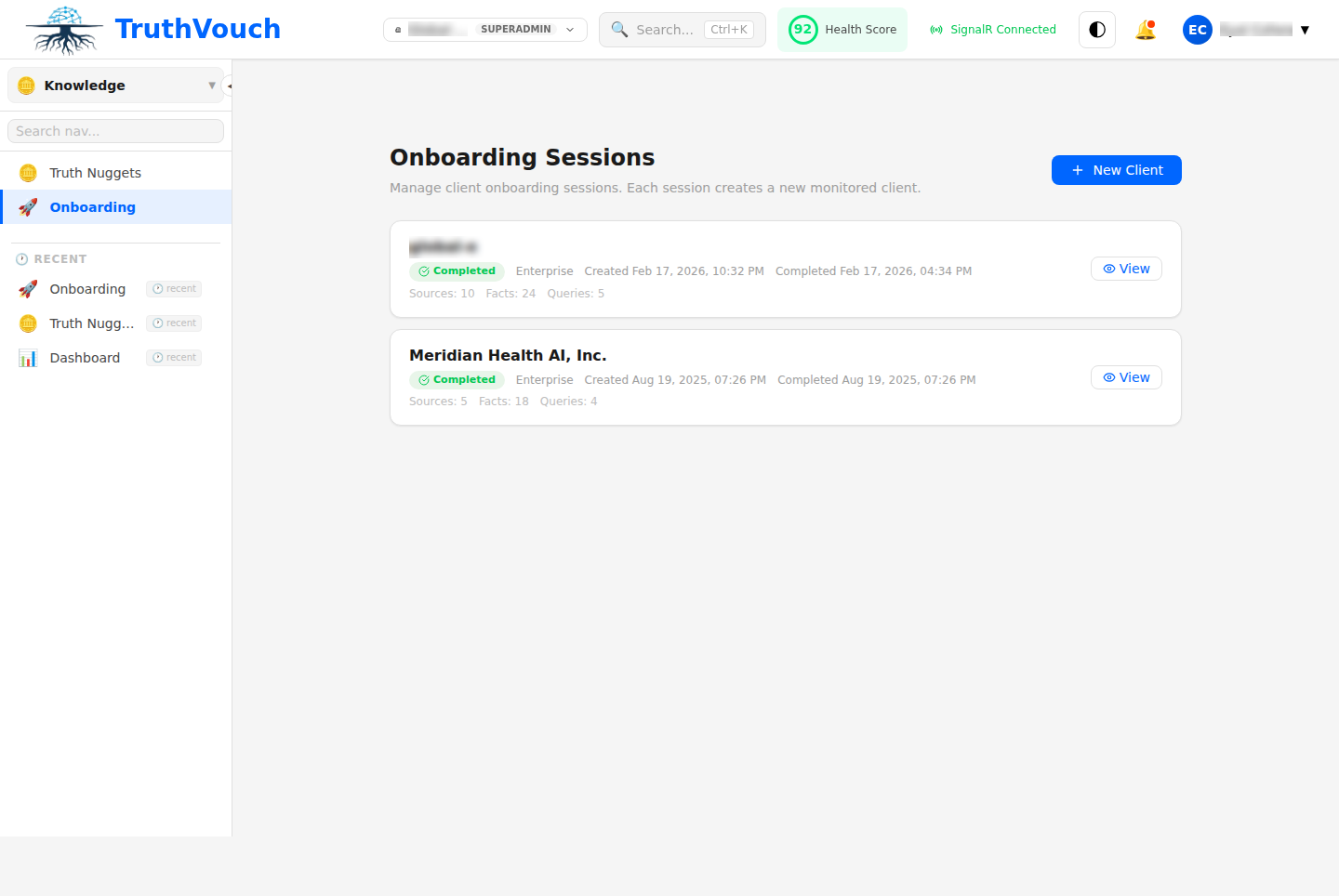
The Onboarding Wizard is the fastest way to get TruthVouch running. It guides you through setup in six steps and typically takes 15-20 minutes.
Why Use the Wizard?
The wizard automatically:
- Discovers 3-5x more facts than manual entry
- Guides you through best practices
- Sets up your first products (Shield, Brand Intel, etc.)
- Creates notifications and alerts
- Gets you to first detection in under an hour
Alternatively, you can skip the wizard and set up manually, but we recommend the wizard for first-time users.
The Six Steps
Step 1: Organization Profile (2 minutes)
Tell us about your company:
Company Name
- Legal name (e.g., “TruthVouch Inc.”)
- Used for Knowledge Base and branding
Industry
- Select from dropdown: SaaS, FinTech, HealthTech, etc.
- Helps personalize recommendations
Website Domain
- Your main website (e.g., https://truthvouch.com)
- Used for auto-discovery
Optional Details
- Headquarters location
- Founded date
- Employee count
- Website tag line / mission
These become your initial Truth Nuggets. You can edit anytime.
Step 2: Auto-Discovery (5 minutes)
TruthVouch automatically scans your website to discover facts about your organization.
What It Automatically Scans
- Homepage
- About / Team pages
- Products / Services pages
- Press / News
- Blog
- Custom URLs you specify
What It Automatically Discovers
- Company basics: founding date, location, size
- Leadership: CEO/founder names and titles
- Products: names, features, pricing
- Financial claims: funding, revenue, customers
- Technical claims: API speed, uptime, security
- Press mentions and partnerships
Confidence Scoring Each extracted fact gets a confidence score (60%-99%). Higher scores = more certain the system understood the claim correctly.
Wait Time Scan typically takes 5-10 minutes. You can watch progress or close the browser — you’ll get an email when complete.
Step 3: Review Suggestions (3-5 minutes)
Once the automatic scan completes, you see suggested Truth Nuggets:
| Fact | Confidence | Action |
|---|---|---|
| ”Founded in 2024” | 98% | Approve |
| ”CEO: Sarah Chen” | 92% | Approve |
| ”Offices in 5 countries” | 78% | Edit / Reject |
For each suggestion:
- Approve: Accept as-is, becomes active Truth Nugget
- Edit: Modify text, confidence, or add source URL before approving
- Reject: Skip (useful for marketing hyperbole or outdated info)
Most teams approve 80-90% of suggestions. You can always edit facts later.
Pro tip: Add source URLs while reviewing. Takes 30 seconds per fact, helps with audits and disputes.
Step 4: Add Manual Facts (2-3 minutes)
Automatic discovery finds about 60-70% of important facts. Add the rest manually:
Click Add Additional Facts and enter 5-10 facts you think are important:
- Key products not mentioned on website
- Funding amounts (often private)
- Team size or location details
- Security certifications
- Customer wins or partnerships
You’re not locked in — add more anytime from the Knowledge Base.
Step 5: Select Products (2 minutes)
Choose which TruthVouch products to activate:
Recommended for Everyone
- Shield (hallucination detection) — $349/month
- More info →
Professional Tier ($1,199/mo) Includes
- Shield
- Brand Intelligence (GEO monitoring)
- AI Advisor (assessment + recommendations)
- Compliance AI (starts here)
Business Tier ($2,499/mo) Adds
- AI Governance (policy enforcement)
- Content Certification
- TruthOps (autonomous agents)
The wizard recommends products based on your industry and team size. You can upgrade anytime.
Step 6: Configure Notifications (1-2 minutes)
Set up alerts:
Alert Channels
- Email (always available)
- Slack
- Microsoft Teams
- PagerDuty (critical only)
- Webhooks (for custom integrations)
Alert Thresholds
- Critical alerts: <2 hours (immediate notification)
- High alerts: Daily digest (next morning)
- Medium/Low: Weekly digest (Sunday morning)
You can change these anytime in Settings → Notifications.
After the Wizard
What’s Ready
- Knowledge Base with 30-50 Truth Nuggets
- Shield configured and monitoring
- First detection results arriving (24-48 hours)
- Team email with summary and next steps
First Detection (24-48 hours)
Shield begins querying AI engines and comparing responses to your Truth Nuggets. First results appear 24-48 hours after setup.
You’ll see:
- Health Score (aggregate accuracy across AI engines)
- Alerts (if any inaccuracies found)
- Detection trends
Next Actions (Week 1)
- Review first detections — Check if Shield’s findings are accurate
- Refine Truth Nuggets — Update any facts Shield flags as uncertain
- Adjust alert thresholds — Tune sensitivity to your business needs
- Invite team members — Add colleagues to collaborate (Professional+ tier)
Skipping the Wizard
You can skip and set up manually:
- Go to Knowledge Base → Truth Nuggets → Add Truth Nugget (repeat)
- Go to Shield → Settings → Configure monitoring schedule
- Go to Settings → Notifications → Configure channels
Manual setup takes 30-45 minutes for an equivalent Knowledge Base.
Restarting the Wizard
If you want to re-run the wizard (e.g., to discover new facts):
- Go to Knowledge Base → Settings → Run Onboarding Again
- Choose whether to keep existing nuggets or start fresh
- Follow the six steps again
Useful after a rebrand or major product launch.
Troubleshooting
Discovery Found Very Few Facts
Check:
- Website is publicly accessible (no login walls)
- Key information is on the website (not just in docs or press)
- Site structure is standard HTML (not heavily JavaScript-based)
If your website is sparse, use manual entry or bulk import instead.
Confidence Scores Seem Wrong
Confidence reflects how confident the NER system is it understood the claim:
- 95%+ = Clear, unambiguous statements
- 80-95% = Contextual but reasonable interpretation
- <80% = Implicit or unclear
You can adjust scores during review or edit nuggets later.
Didn’t See All My Products
Auto-discovery finds facts mentioned on your website. If a product isn’t mentioned (or uses different wording), add it manually in Step 4.
Need to Change Something Later
Everything from the wizard is editable:
- Truth Nuggets: Knowledge Base → Edit
- Products: Settings → Products & Billing
- Notifications: Settings → Notifications
No lock-in.
Next Steps
After the wizard:
- Shield Overview — Start monitoring
- Truth Nugget Best Practices — Maintain quality
- Invite Your Team — Collaborate