Understanding Alerts
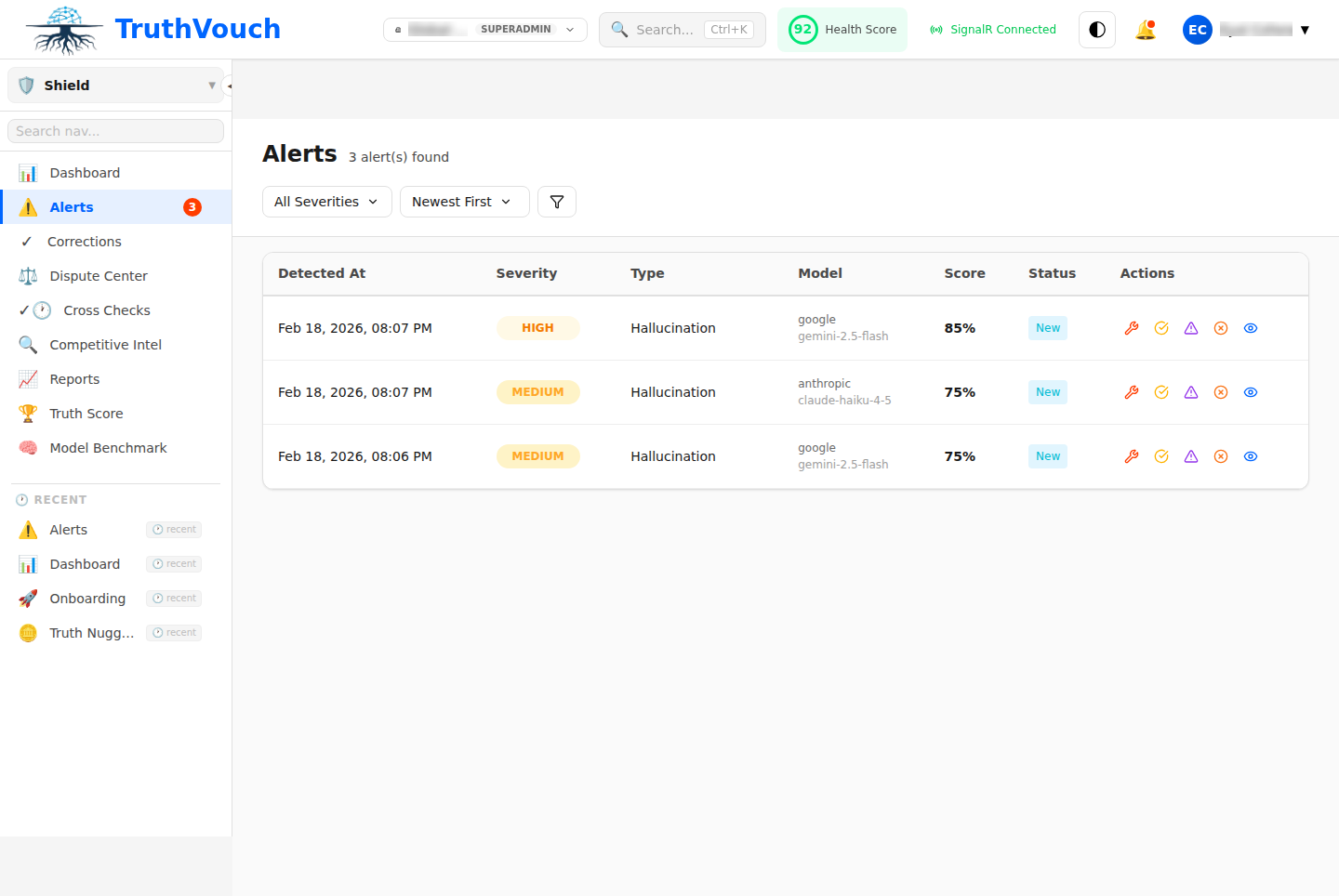
Alerts automatically notify you when Shield detects hallucinations. Each alert represents a potential brand risk that may require action.
What Triggers an Alert
Shield triggers an alert when:
- Cross-check completes with truth score below your threshold (default: 80)
- AI response contradicts or diverges significantly from your Truth Nugget
- The discrepancy represents a brand or business risk
Alert Threshold (configurable):
- Critical: Score <60 (always alert)
- High: Score 60-79 (alert by default)
- Medium: Score 40-59 (optional alert)
- Low: Score <40 (never alert by default)
Adjust thresholds in Settings → Alerts → Sensitivity.
Alert Lifecycle
Each alert follows a workflow:
New → Acknowledged → Investigating → Resolved/DismissedNew
Alert just created. Requires attention.
- Click to review details
- Can approve correction, dismiss, or investigate
Acknowledged
You’ve reviewed it and plan to act.
- Shows team member assigned (optional)
- Ticket created in issue tracker (if integrated)
Investigating
Assigned to team member for research.
- Notes can be added
- Status updates tracked
Resolved
Correction deployed and verified, or cause identified and handled.
- Terminal state
- Full history retained
Dismissed
You’ve determined it’s not a true hallucination.
- Reasons: “Paraphrase OK”, “Outdated fact”, “False positive”, “Not important”
- Shield learns from dismissals
Alert Details
Click any alert to see:
Summary
- Alert ID and creation time
- Severity (critical, high, medium, low)
- AI engine and model
- Truth Nugget involved
Full Comparison
Your Truth: "Founded in 2024"AI Said: "Founded in early 2023"Entities: Date: 2023 (vs your 2024)NLI Verdict: CONTRADICTED (96% confidence)Truth Score: 15/100AI Response Full text of what the AI generated.
Suggested Correction Auto-generated fix (if applicable):
- For product facts: “Update your website to mention the feature”
- For pricing: “Publish correct pricing to your pricing page”
- For people: “Clarify in bio or press materials”
Audit Trail
- When detected
- By which query
- Who’s assigned (if any)
- Notes added
Alert Severity
Critical (Score <60)
Major hallucination or contradiction.
Examples:
- “Company shut down” (completely false)
- “CEO is wrong person” (identity error)
- “Product does X instead of Y” (wrong capability)
- Price off by 10x
Action: Fix immediately. High brand damage.
High (Score 60-79)
Significant inaccuracy affecting perception.
Examples:
- “Price is $200/month” (you say $349)
- “Founded in 2020” (you say 2024)
- “Monitors 5 engines” (you say 9)
Action: Fix within 24 hours.
Medium (Score 40-59)
Partial information or minor discrepancy.
Examples:
- “Has some AI safety features” (vague vs your detailed list)
- “Has thousands of customers” (you say “500+”)
- Doesn’t mention key differentiator
Action: Fix within 48 hours, or update fact if it’s ambiguous.
Low (Score <40)
Minor misunderstanding unlikely to affect decisions.
Examples:
- “Has a new product” (you say “launching soon”)
- Name slightly misspelled or colloquialized
- Missing non-critical detail
Action: Optional. Fix if you have time, or mark as false positive.
Managing Alerts
Dismiss Alert
Mark as not a true hallucination:
- Click alert → Dismiss → Choose reason
Reasons:
- “Paraphrase OK” — AI said something different but equivalent
- “Outdated fact” — Your Truth Nugget is stale, not the AI
- “False positive” — Shield’s detection was wrong
- “Not a risk” — Inaccuracy exists but doesn’t matter
- “Will fix separately” — Not via correction
Shield learns from dismissals to reduce future false positives.
Approve Correction
Shield suggests a fix; you approve it:
- Click alert → Approve Correction → Choose method
- Correction deploys within seconds
- Shield re-polls in 24-72 hours to verify
Edit Truth Nugget
If the alert reveals your fact is wrong:
- Click alert → Edit Nugget
- Update fact text, confidence, or expiry
- Save (Shield re-scores immediately)
- Alert may auto-resolve if score improves
Assign to Team Member
Delegate investigation:
- Click alert → Assign
- Choose team member and due date
- They get notified
- Slack/email notification sent
Add Note
Document investigation findings:
- Click alert → Add Note
- Type investigation details
- Visible to team and in audit trail
Filtering Alerts
Go to Shield → Alerts to see all alerts, filtered by:
- Status: New, Acknowledged, Investigating, Resolved, Dismissed
- Severity: Critical, High, Medium, Low
- Engine: ChatGPT, Claude, Gemini, Perplexity, etc.
- Category: Product, Financial, Leadership, etc.
- Time: Last 24h, 7d, 30d, custom range
- Assigned: Unassigned, assigned to me, assigned to specific person
Common Views
Action Items (unsolved):
- Status: New, Acknowledged, Investigating
- Severity: Critical, High
Recently Resolved:
- Status: Resolved
- Time: Last 7 days
False Positives:
- Status: Dismissed
- Reason: False positive
Alert Notifications
Choose how to be notified:
Email: Digest with summary
- Critical → immediately
- High → morning (8 AM)
- Medium → daily (5 PM)
- Low → weekly (Sunday 5 PM)
Slack: Real-time messages
- Critical → @channel mention in #security
- High → @you in thread
- Medium/Low → disabled
Teams: Direct messages
- Critical → urgent flag
- High → normal
- Medium/Low → daily digest
PagerDuty: On-call escalation
- Critical → page on-call
- High/Medium → auto-incident, no page
- Low → disabled
Configure in Settings → Notifications.
Bulk Operations
Select multiple alerts to act on together:
- Click checkboxes on multiple alerts
- Actions appear at top:
- Mark as Resolved
- Approve Corrections (one by one)
- Assign to Person
- Add Tag
- Export to CSV
Example: “Select all ChatGPT pricing alerts → Approve Corrections → all deploy at once”
Next Steps
- Alert Severity & Scoring — Understand severity calculation
- Notification Channels — Configure how you’re notified
- Alert Workflows — Step-by-step response guides